Panopto: Recording with Panopto Capture in Brightspace

1. Log into Brightspace
2. Click on the Panopto tool on you Brightspace homepage navbar under "more tools"

3. You will be brought to your home or course folder, and the Create Button will be towards the center:
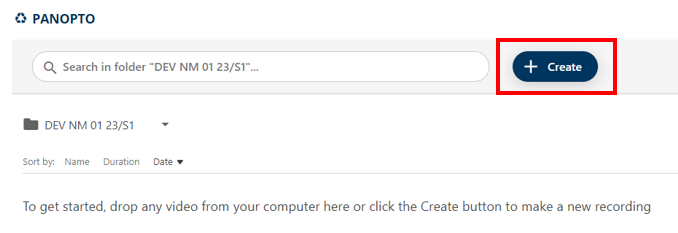
4. Click on the Create Button.
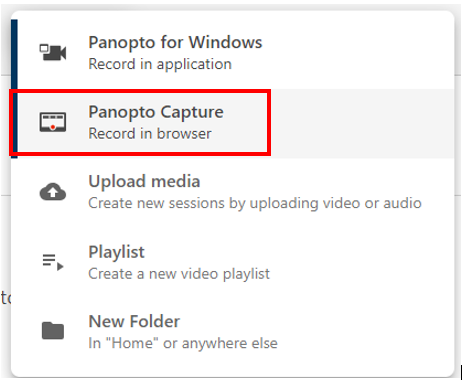
5. Click on Panopto Capture:
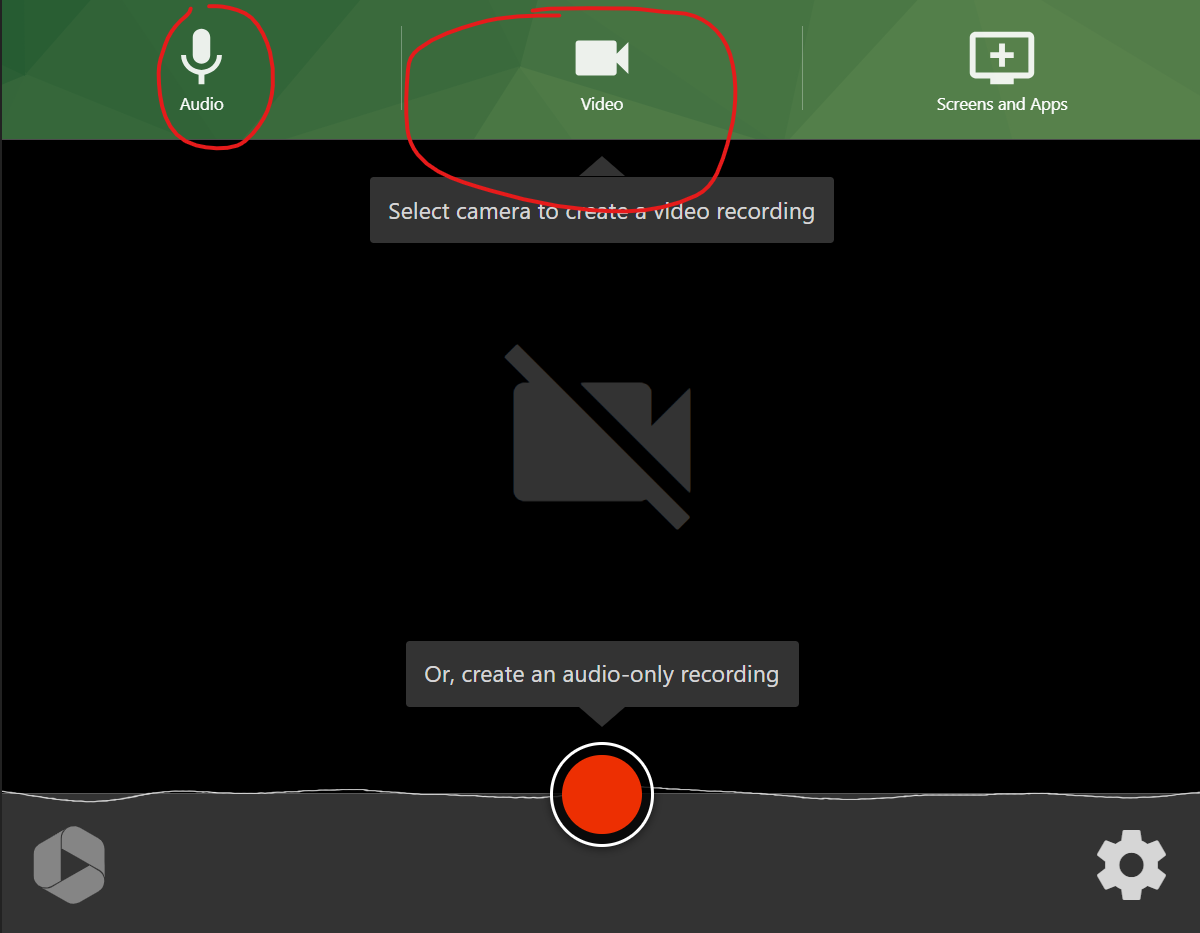
6. Select the inputs that will be used in the recording:
7. Click the red button at the bottom to begin recording:
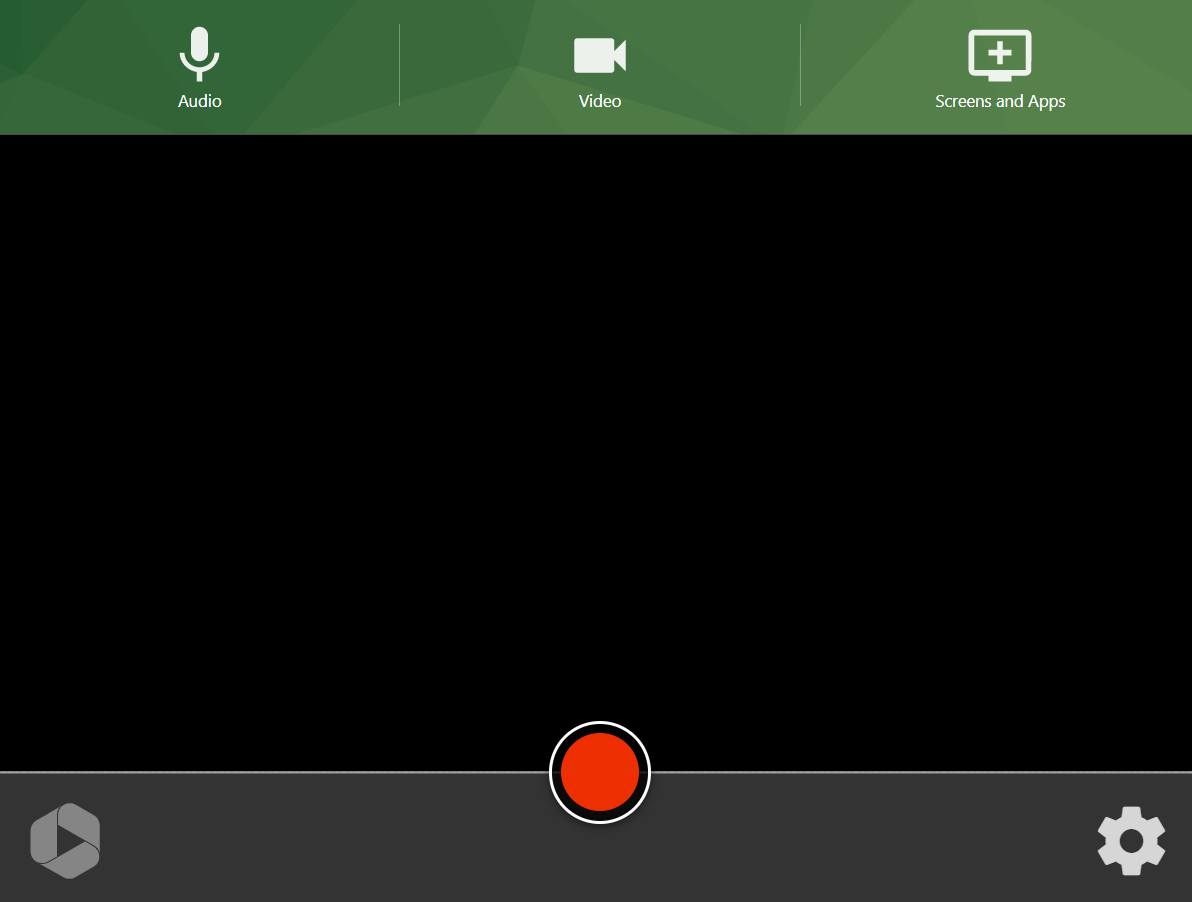
8. Select the red square at the bottom to stop the recording:
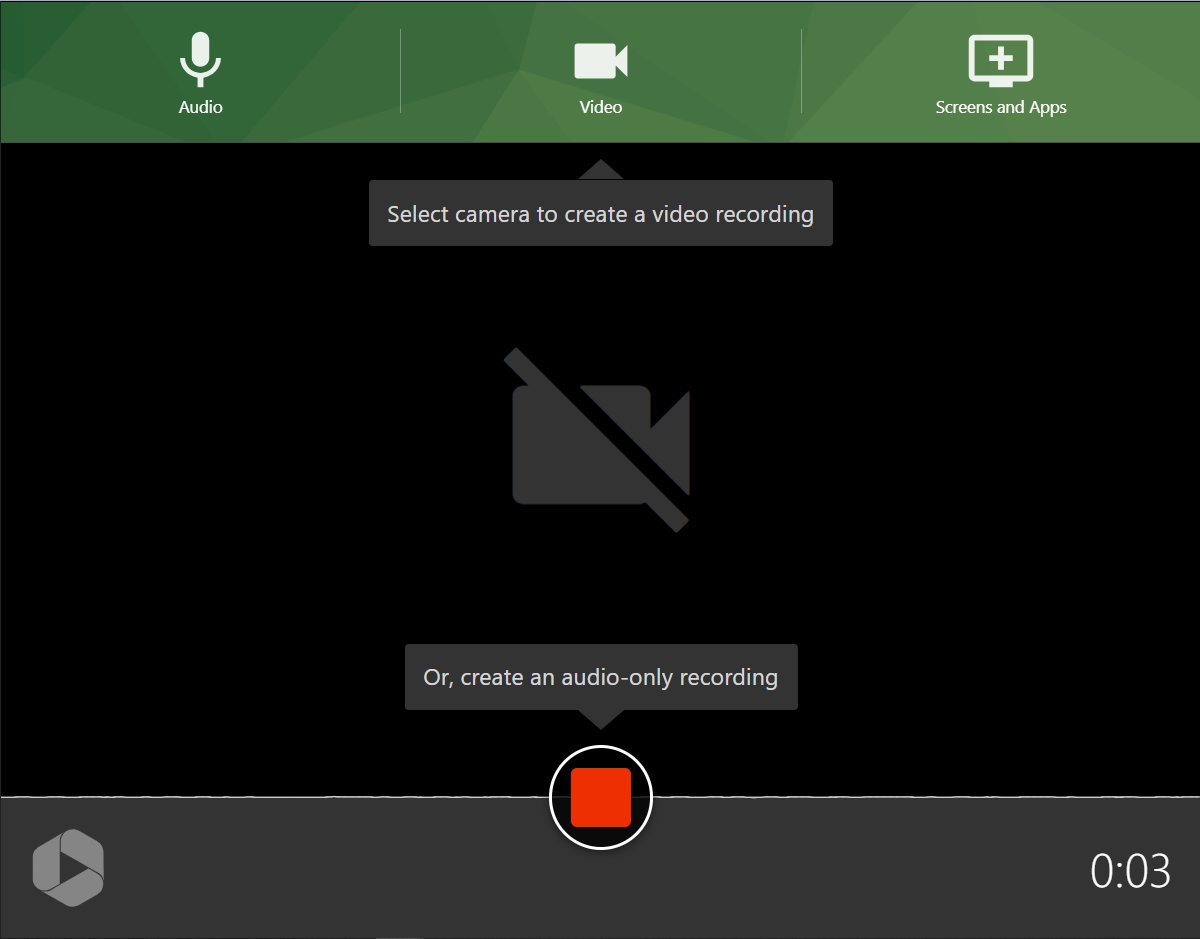
The recording is automatically sent to Panopto.
Click the icon below to view a video on how to use the in-browser version of Panopto Capture. Please note that the screensteps will guide you through the new integration, and location of the "create button"

For further assistance, please email id@rwu.edu